
One of the most used services in a business environment is email.
Companies need to ensure that their image maintains the standard they choose, in both internal and external communications.
Then let’s use a VBScript to do a standard SIG and get the information from each user in Active Directory(AD).
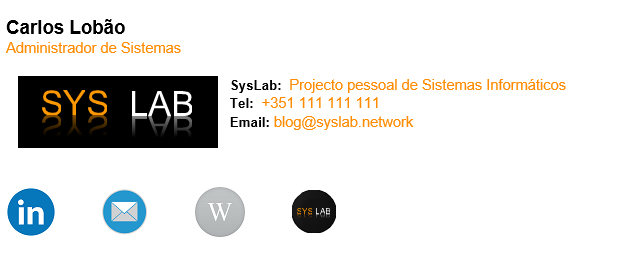
This is an example of a Signature with the fields Full Name, Phone number, Email and Job Title from Active Directory.
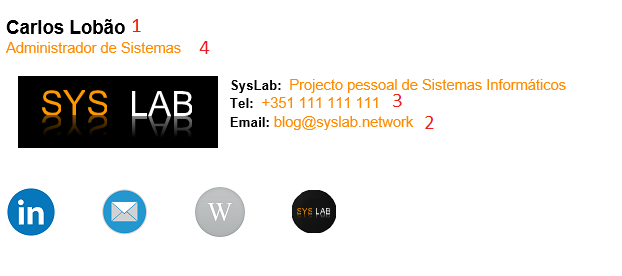
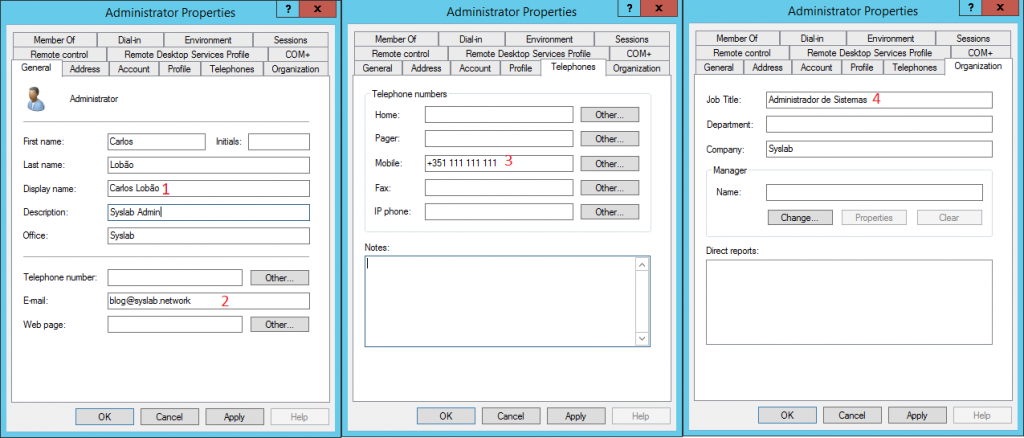
So, how does the whole thing work? In the script we are going to create a word document and then “attach” to Outlook signature.
I have two setups for the color and size of the text.
On Error Resume Next
		Function orange(objSelection)
			With objSelection
				With .Font
					.Name = "Helvetica"
					.Size = 11
					.Bold = False
					.Color = RGB(256,140,0)
					.Italic = False
					.Underline = False

				End With
			End With

		End Function

		Function black(objSelection)
			With objSelection
				With .Font
						.Name = "Helvetica"
						.Size = 10
						.Bold = True
						.Color = RGB(0,0,0)
						.Italic = False
						.Underline = False
				End With
			End With

		End Function
Now, get the information from AD and pass it into variables.
Set objSysInfo = CreateObject("ADSystemInfo")
		strUser = objSysInfo.UserName
	Set objUser = GetObject("LDAP://" & strUser)

	With objUser

		strName = .FullName
		strTitle = .Title
		stradr = .streetAddress
		strpostal = .postalCode
		strl = .l
		strco = .co
		strcomp = .company
		strhome = .homePhone
		strIpPhone = .ipPhone
		strMobile = .Mobile
		strPhone = .TelephoneNumber
		strMail = .mail


	End With
Creating the word document.
In the full name field I used different font settings, which only happened in this field, so I inserted the settings manually instead of creating a function.
Set objword = CreateObject("Word.Application")
	With objword
		Set objDoc = .Documents.Add()
		Set objSelection = .Selection
		Set objEmailOptions = .EmailOptions
	End With

Set objSignatureObject = objEmailOptions.EmailSignature
Set objSignatureEntries = objSignatureObject.EmailSignatureEntries
With objSelection


		.ParagraphFormat.Alignment = wdAlignParagraphLeft
		.ParagraphFormat.SpaceAfter = 0
		.ParagraphFormat.SpaceBefore = 0


		'NAME
		 With .Font
				.Name = "Helvetica"
				.Size = 14
				.weight = 1000
				.Bold = True
				.Color = RGB(0,0,0)
				.Italic = False
				.Underline = False
		End With
		.TypeText strName
		.TypeText Chr(11) & Chr(6)

		...
In the second field we first call the function with the settings we want, in this case the orange.
...
		'JOB TITLE

		orange(objSelection)
		.TypeText strTitle & Chr(32) & Chr(11) & Chr(11)

		...
The first two fields are inserted.
Now let’s insert the image. We have to wrap it so that we can insert the text in front of it.
...
		.InlineShapes.AddPicture "\\SYSPDC\wider\sig.png", True, True
		objDoc.InlineShapes(1).ConvertToShape
			objDoc.Shapes(1).WrapFormat.Type = 0 'Abaixo
			objDoc.Shapes(1).WrapFormat.Type = 0 'Ao Lado
			...
To create the Social Banner we first insert the images and then the links.
.	...
	'SOCIAL BANNER

		.TypeText   Chr(32)& Chr(32) & Chr(11)	& Chr(11) & Chr(11)

		.InlineShapes.AddPicture "\\192.168.2.11\shares_W\Sig\Social_Banner\linkedin.png", True, True
		.TypeText Chr (9)
		.InlineShapes.AddPicture "\\192.168.2.11\shares_W\Sig\Social_Banner\email.png", True, True
		.TypeText Chr (9)
		.InlineShapes.AddPicture "\\192.168.2.11\shares_W\Sig\Social_Banner\wiki.png", True, True
		.TypeText Chr (9)
		.InlineShapes.AddPicture "\\192.168.2.11\shares_W\Sig\Social_Banner\social.png", True, True
		.TypeText Chr (9)

End With

	objDoc.Hyperlinks.Add objDoc.InlineShapes.Item(1),"https://www.linkedin.com/in/carlos-lobao"
	objDoc.Hyperlinks.Add objDoc.InlineShapes.Item(2),"mailto:[email protected]"
	objDoc.Hyperlinks.Add objDoc.InlineShapes.Item(3),"https://wiki.syslab.network"
	objDoc.Hyperlinks.Add objDoc.InlineShapes.Item(4),"https://www.syslab.network"
	...
Lastly, we insert our signature in Outlook.
...
Set objSelection = objDoc.Range()

objSignatureEntries.Add "AD Signature", objSelection
objSignatureObject.NewMessageSignature = "AD Signature"
objSignatureObject.ReplyMessageSignature = "AD Signature"
objDoc.Saved = True
objword.Quit
Script
On Error Resume Next
		Function orange(objSelection)
			With objSelection
				With .Font
					.Name = "Helvetica"
					.Size = 11
					.Bold = False
					.Color = RGB(256,140,0)
					.Italic = False
					.Underline = False

				End With
			End With

		End Function

		Function black(objSelection)
			With objSelection
				With .Font
						.Name = "Helvetica"
						.Size = 10
						.Bold = True
						.Color = RGB(0,0,0)
						.Italic = False
						.Underline = False
				End With
			End With

		End Function
	Set objSysInfo = CreateObject("ADSystemInfo")
		strUser = objSysInfo.UserName
	Set objUser = GetObject("LDAP://" & strUser)

	With objUser

		strName = .FullName
		strTitle = .Title
		stradr = .streetAddress
		strpostal = .postalCode
		strl = .l
		strco = .co
		strcomp = .company
		strhome = .homePhone
		strIpPhone = .ipPhone
		strMobile = .Mobile
		strPhone = .TelephoneNumber
		strMail = .mail


	End With


Set objword = CreateObject("Word.Application")
	With objword
		Set objDoc = .Documents.Add()
		Set objSelection = .Selection
		Set objEmailOptions = .EmailOptions
	End With

Set objSignatureObject = objEmailOptions.EmailSignature
Set objSignatureEntries = objSignatureObject.EmailSignatureEntries
With objSelection


		.ParagraphFormat.Alignment = wdAlignParagraphLeft
		.ParagraphFormat.SpaceAfter = 0
		.ParagraphFormat.SpaceBefore = 0


		'NAME
		 With .Font
				.Name = "Helvetica"
				.Size = 14
				.weight = 1000
				.Bold = True
				.Color = RGB(0,0,0)
				.Italic = False
				.Underline = False
		End With
		.TypeText strName
		.TypeText Chr(11) & Chr(6)


		'JOB TITLE

		orange(objSelection)
		.TypeText strTitle & Chr(32) & Chr(11) & Chr(11)


		.InlineShapes.AddPicture "\\SYSPDC\wider\sig.png", True, True
		objDoc.InlineShapes(1).ConvertToShape
			objDoc.Shapes(1).WrapFormat.Type = 0 'Abaixo
			objDoc.Shapes(1).WrapFormat.Type = 0 'Ao Lado
		'main
		black(objSelection)
		.TypeText ("SysLab:  ")
		orange(objSelection)
		.TypeText ("Projecto pessoal de Sistemas Informáticos")
		.TypeText Chr(11)


		'mobile

		If (strMobile = Empty) Then
			.TypeText  Chr(32)
		Else
			black(objSelection)
			.TypeText ("Tel: ")
			'Mobilephone
			orange(objSelection)
			.TypeText   Chr(32)& strMobile & Chr(11)
		End If

		'Email
		black(objSelection)
		.TypeText ("Email: ")
		orange(objSelection)
		.TypeText  strMail & Chr(32) & Chr(11) & Chr(6)

		'General Phone
		If (strhome <> Empty) Then
			black(objSelection)
			.TypeText ("Main: ") & Chr(32)& Chr(32)
			orange(objSelection)
			.TypeText  strhome & Chr(32)& Chr(32)

		End If

		'Direct Phone
		If (strIpPhone <> Empty) Then
			black(objSelection)
			.TypeText ("Direct: ") & Chr(32)& Chr(32)
			orange(objSelection)
			.TypeText  strIpPhone
		End If


	'SOCIAL BANNER

		.TypeText   Chr(32)& Chr(32) & Chr(11)	& Chr(11) & Chr(11)

		.InlineShapes.AddPicture "\\192.168.2.11\shares_W\Sig\Social_Banner\linkedin.png", True, True
		.TypeText Chr (9)
		.InlineShapes.AddPicture "\\192.168.2.11\shares_W\Sig\Social_Banner\email.png", True, True
		.TypeText Chr (9)
		.InlineShapes.AddPicture "\\192.168.2.11\shares_W\Sig\Social_Banner\wiki.png", True, True
		.TypeText Chr (9)
		.InlineShapes.AddPicture "\\192.168.2.11\shares_W\Sig\Social_Banner\social.png", True, True
		.TypeText Chr (9)

End With

	objDoc.Hyperlinks.Add objDoc.InlineShapes.Item(1),"https://www.linkedin.com/in/carlos-lobao"
	objDoc.Hyperlinks.Add objDoc.InlineShapes.Item(2),"mailto:[email protected]"
	objDoc.Hyperlinks.Add objDoc.InlineShapes.Item(3),"https://wiki.syslab.network"
	objDoc.Hyperlinks.Add objDoc.InlineShapes.Item(4),"https://www.syslab.network"

Set objSelection = objDoc.Range()

objSignatureEntries.Add "AD Signature", objSelection
objSignatureObject.NewMessageSignature = "AD Signature"
objSignatureObject.ReplyMessageSignature = "AD Signature"
objDoc.Saved = True
objword.Quit
Troubleshooting
If there are users connected to the network via VPN, verify if their communication with the AD is correct. Communication with AD does not work correctly, only through IP is the DNS required.
If you run the script and the changes don’t happen run in CMD
gpupdate
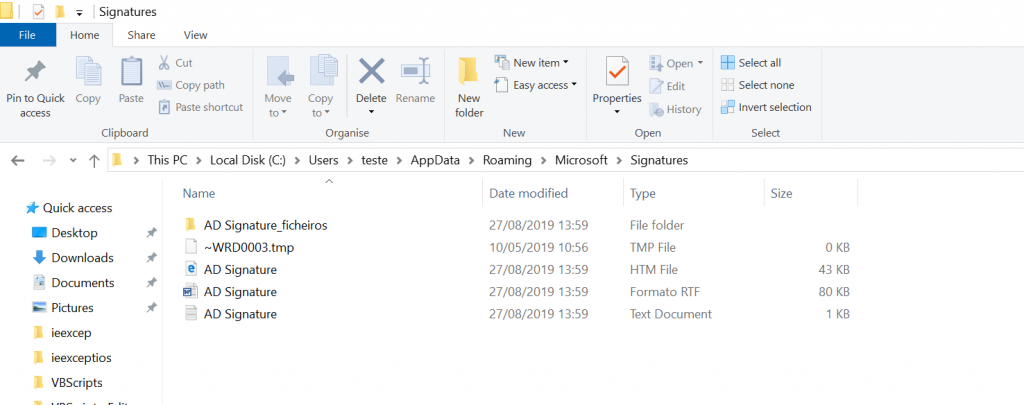
Finally, delete the files from C:\Users\USER\AppData\Roaming\Microsoft\Signatures and run the script again.
The script is available in the Download menu.
Like!! I blog frequently and I really thank you for your content. The article has truly peaked my interest.